
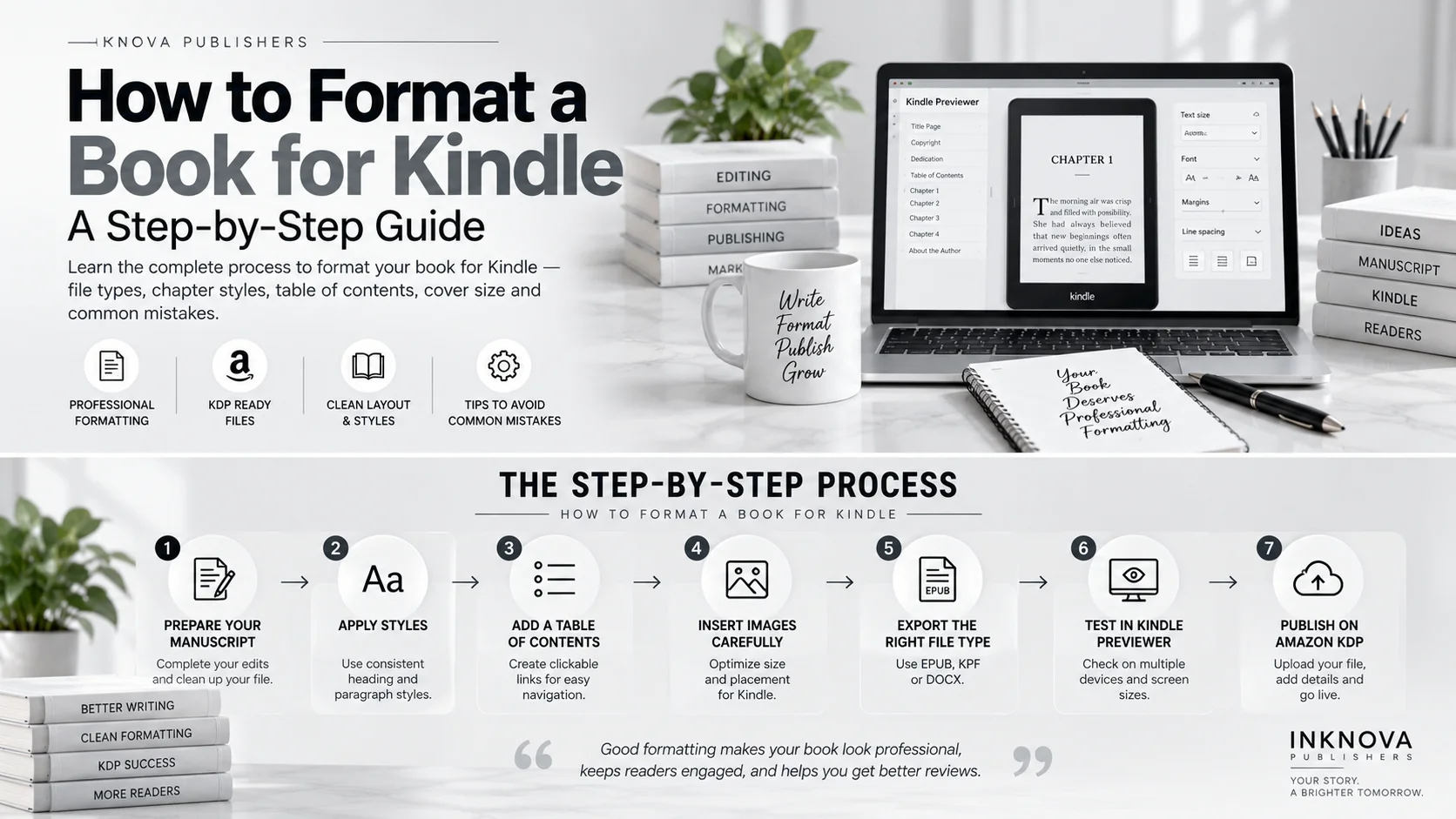
Quick answer: To format a book for Kindle, finish your edits, apply consistent heading and paragraph styles, add a clickable table of contents, and export an EPUB, KPF or DOCX file. Then upload a separate cover image and test everything in Kindle Previewer before you publish on Amazon KDP.
Key takeaways
- EPUB is the safest file type for most authors. KPF and DOCX also work.
- Kindle books are reflowable, so readers control font size and spacing. Don’t fight it.
- Use styles, not manual spacing, for headings and paragraphs.
- A working table of contents is a must, both for navigation and for reader reviews.
- Always preview your file on multiple screen sizes before hitting publish.
You spent months, maybe years, writing your book. Then you upload it to Amazon and the chapters run together, the images jump around and the table of contents leads nowhere. It’s a painful moment, and it’s also very common.
The good news is that you can format a book for Kindle without design skills or expensive software. You just need a clean manuscript, a few consistent rules and a bit of patience. This guide walks you through the whole process, from file types to final testing.
If you would rather hand it off, our team offers Amazon self-publishing services that include formatting. But if you want to do it yourself, everything you need is below.

What Does It Mean to Format a Book for Kindle?
Formatting a Kindle book means preparing your manuscript so it displays cleanly on every Kindle device and app. That includes Kindle e-readers, phones, tablets and computers.
Here is the key idea. A print book has fixed pages. A Kindle ebook does not. It uses reflowable text, which means the reader chooses the font, the text size and the line spacing. The screen then rearranges your words to fit.
Because of this, you don’t control how a page looks. Instead, you control the structure: where chapters begin, how headings work, where images sit and how the table of contents links together.
That’s why the usual Word habits cause trouble. Pressing Enter five times to start a new page, or using the Tab key to indent a paragraph, might look fine on your screen. On a Kindle, those tricks turn into random gaps and broken layouts.
Good formatting is mostly invisible. Readers don’t notice it when it works. They only notice when it fails, and they often mention it in reviews.
Which File Format Should You Use for Kindle?
Amazon KDP accepts several file types for ebook manuscripts. Each has strengths and weak spots.

If you are unsure, choose EPUB. It’s the most widely used format across ebook stores, and it usually converts to Kindle with the fewest surprises.
DOCX is fine for a straightforward novel, as long as your Word file is clean. However, if your book has images, tables, sidebars or complex layouts, EPUB or KPF is the safer route.
One more note. AZW3 is a delivery format, not an upload format, so KDP won’t take it. If you have an old AZW3 or MOBI file, convert it to EPUB first.
Before You Start: Get Your Manuscript Ready
Formatting a messy manuscript is like painting a wall you haven’t repaired yet. So, before you touch any styles, do this prep work.
1. Finish editing. Make all content changes first. Editing after formatting often breaks the layout, so lock the text before you begin. If you still need help with the writing itself, our ghostwriting and editing team can support you at any stage.
2. Resolve tracked changes and comments. Leftover edits in a Word file can slip into the published book. Accept or reject every change, then delete all comments.
3. Plan your front matter and back matter. A typical Kindle book includes:
- Title page
- Copyright page
- Dedication (optional)
- Table of contents
- Main chapters
- Acknowledgments
- About the author
- Also by (a list of your other books)
4. Gather your images. Collect every illustration, chart or photo in one folder. Name them clearly so you can place them quickly.
5. Save a backup. Keep one untouched copy of your manuscript. You’ll thank yourself later.
How to Format a Book for Kindle, Step by Step
Now we get to the practical part. These seven steps work in Word, Google Docs or any similar editor, and they apply whichever file type you choose.
Step 1: Use Styles Instead of Manual Formatting
Styles are the foundation of a clean Kindle file. In Word, they live in the Home tab. Apply them like this:
- Title: for the book title only
- Heading 1: for chapter titles
- Heading 2: for major sections inside a chapter
- Normal (or Body Text): for all regular paragraphs
Never make a heading by simply bolding text and increasing the size. Kindle needs the actual heading style to build the navigation menu.
Step 2: Clean Up Spacing and Indents
Next, remove every trace of manual spacing. Search for and delete these common problems:
- Multiple spaces between words or sentences
- Tabs used to indent paragraphs
- Extra empty paragraphs used as gaps
To indent the first line of each paragraph, set it inside the paragraph style, not with the Tab key. Alternatively, use spacing between paragraphs and skip indents entirely. Either choice is fine, but pick one and stay consistent.
A quick trick: turn on the “show formatting marks” button (the ¶ symbol). It reveals hidden spaces, tabs and extra returns so you can clear them out.
Step 3: Start Each Chapter with a Page Break
To begin a new chapter on a fresh screen, insert a real page break. In Word, press Ctrl + Enter. Don’t hit Enter repeatedly until the next chapter drops down.
You can also set “page break before” inside your Heading 1 style. That way, every chapter starts on a new page automatically, and you never have to think about it again.
Step 4: Build a Linked Table of Contents
A working table of contents is not optional for a good Kindle book. It has two jobs. First, it powers the “Go to” menu on Kindle devices. Second, it gives readers a clickable list of chapters inside the book itself.
In Word, place your cursor where the contents page should go. Then choose References, then Table of Contents. Because you used Heading 1 styles, Word builds the list for you, with links.
If you use Kindle Create or an EPUB tool, the table of contents is usually generated automatically from your headings. Either way, test every link. A broken table of contents is one of the most common reasons readers leave complaints.
Step 5: Add Images the Right Way
Images add life to a book, but they are also a top cause of formatting errors. Follow these rules:
- Place images inline, meaning inside the text flow, not floating around it.
- Use JPEG or PNG files.
- Aim for roughly 300 PPI for detailed illustrations and photos. Simple graphics can be lower.
- Keep file sizes reasonable so the book downloads quickly.
- Add alt text so screen readers can describe each image.
If you are publishing a picture book or an illustrated title, formatting is trickier because layout matters more. In that case, professional book illustration and layout support can save you a lot of frustration.
Step 6: Keep Fonts and Layout Simple
Here’s where many authors overthink things. On a Kindle, readers can change the font and size themselves, so your font choice mostly won’t stick. Custom fonts may not embed properly either.
So keep it simple:
- Use one standard font in your editor.
- Skip headers, footers and page numbers. Ebooks don’t use them.
- Avoid text boxes and shapes, which may get dropped or turned into images.
- Use tables sparingly, and only when they are truly needed.
Simple is not boring here. It’s what keeps your book readable on every device.
Step 7: Export Your Final File
Once the manuscript is clean, export it in your chosen format:
- EPUB: export from a tool like Reedsy Studio or Atticus, or convert a clean DOCX with an EPUB editor.
- KPF: import your DOCX into Kindle Create, adjust the theme, and save the package.
- DOCX: save your Word file directly, after double-checking styles and links.
Then move on to testing. Never upload without previewing first.
Kindle Book Cover Requirements
Your cover is uploaded separately from your manuscript. Do not place it inside the interior file as a page. Instead, KDP asks you to upload the cover image on its own during setup.
Here are the standard cover specs for a Kindle ebook:
- Recommended size: 2,560 pixels tall by 1,600 pixels wide
- Aspect ratio: 1.6 to 1 (height to width)
- File type: JPEG or TIFF
- Color mode: RGB, not CMYK
If your image is smaller than the recommended size, KDP will warn you. Very small covers may not display well on the Amazon site, so it’s worth getting the dimensions right the first time.
Also, test your cover at thumbnail size. Most shoppers see it as a tiny image in search results. If the title is unreadable at that size, you’ll lose clicks. Light backgrounds can also disappear against Amazon’s white page, so a thin gray border helps.
Need a cover that stands out in the store? Our team designs covers as part of our Amazon publishing services.
Best Tools to Format a Kindle Book
You don’t need to spend a lot. Here’s a quick comparison to help you choose.

Prices and features change, so check each tool’s website before you buy. As a general rule, start with a free tool. Upgrade only if your book needs more advanced layouts.
Common Kindle Formatting Mistakes to Avoid
Even careful authors slip up. Watch for these frequent problems.
- Using bold text as headings. It looks like a heading, but Kindle doesn’t treat it as one. Your navigation menu ends up empty.
- Pressing Enter to create space. Those blank lines become strange gaps on smaller screens.
- Skipping the table of contents. Some books get through without one, yet readers notice quickly and often say so in reviews.
- Oversized images. Huge files slow downloads and can trigger warnings during upload.
- Inconsistent styles. If one chapter uses one heading size and the next uses another, the book looks careless.
- Forgetting to test. This is the biggest one. A file that looks perfect in Word can look completely different on a Kindle.
- Copying text from web pages or PDFs. Hidden formatting comes along with it. Paste as plain text, then restyle.
If you fix only these seven issues, your book will already look more professional than many self-published titles.
How to Preview and Test Your Kindle Book
Testing is the step that saves you from public embarrassment. Fortunately, it’s free.
- Use Kindle Previewer. This is Amazon’s free tool. It shows how your book will look on different Kindle devices, phones and tablets. Check each device type.
- Change the font size. Make the text bigger and smaller. Then see whether headings, images and paragraphs still behave.
- Click every link. Test the table of contents, any web links and links between sections.
- Read the first and last pages. Look at the title page, copyright page, and the “About the Author” section. Small typos hide there.
- Send it to a real device. If you have a Kindle or the Kindle app, open your file there too. A real screen shows things a previewer sometimes misses.
- Ask a friend to read a chapter. Fresh eyes catch odd spacing or broken lines you no longer notice.
Only after this should you upload to KDP and press publish.
Should You Hire a Professional to Format Your Kindle Book?
Many authors can format a book for Kindle on their own, especially with a simple novel or memoir. It takes time, but it’s very doable.
That said, professional help makes sense in several situations:
- Your book has many images, charts or tables.
- You are publishing a children’s or illustrated book.
- You plan to release print and ebook versions together.
- You are short on time and would rather focus on marketing.
- You’ve tried, and the file keeps failing during upload.
A professional formatter handles the technical details and checks your file against current KDP rules. In addition, a full publishing partner can coordinate editing, cover design, formatting, upload and launch in one place.
That’s what we do at Inknova Publishers. Our team supports authors with ghostwriting, editing, illustration, Kindle formatting and Amazon publishing. If you’d like to talk through your project, you can contact our team for a free consultation.
Frequently Asked Questions
Q. Can I format a Kindle book in Microsoft Word?
A. Yes. Word works well for simple, text-based books such as novels and memoirs. Use styles for headings, remove manual spacing and build a linked table of contents. For books with many images or complex layouts, EPUB or Kindle Create is a safer choice.
Q. What file format does Kindle accept?
A. KDP accepts EPUB, KPF and DOCX for ebook manuscripts. EPUB is generally the most reliable. MOBI is no longer supported for new uploads, and AZW3 is not an upload format.
Q. What font should I use for a Kindle book?
A. It doesn’t matter much, because readers can change the font on their device. Use one standard font while you write and rely on paragraph and heading styles for structure instead.
Q. How do I add a table of contents to a Kindle book?
A. Apply Heading styles to your chapter titles, then insert an automatic table of contents in Word, or let Kindle Create or your EPUB tool generate one. Always click each link afterward to confirm it works.
Q. What size should a Kindle cover be?
A. Amazon recommends 2,560 pixels tall by 1,600 pixels wide, a 1.6 to 1 ratio, saved as a JPEG or TIFF in RGB color.
Q. How much does Kindle formatting cost?
A. It ranges from free, if you use Kindle Create or a similar tool yourself, to a paid fee for a professional formatter. The price depends on your book’s length, images and layout. Contact us for a quote on your specific project.
Q. How long does it take to format a book for Kindle?
A. A clean, text-only manuscript can take a few hours. Books with images, tables or special layouts take longer, and testing adds more time.
Final Thoughts
Learning how to format a book for Kindle isn’t about becoming a designer. It’s about building a clean structure, using consistent styles and testing before you publish. Do those three things, and your book will look professional on every device.
To recap: choose EPUB if you can, use real heading styles, build a working table of contents, keep images inline, prepare a properly sized cover and preview everything in Kindle Previewer.
If you would rather skip the technical work, Inknova Publishers is here to help. From ghostwriting to formatting to launching on Amazon, we guide authors through each step. Reach out today and let’s get your book into readers’ hands.
